
Introduction
Getting your Xbox One up and running is an exciting milestone, whether you’re a gaming pro or venturing into console gaming for the first time. This comprehensive guide is here to simplify the process of turning on your Xbox One, addressing common startup issues, and showcasing advanced features to enhance your overall gaming experience. Let’s get started and ensure your console is ready for action.
Preparing to Power On Your Xbox One
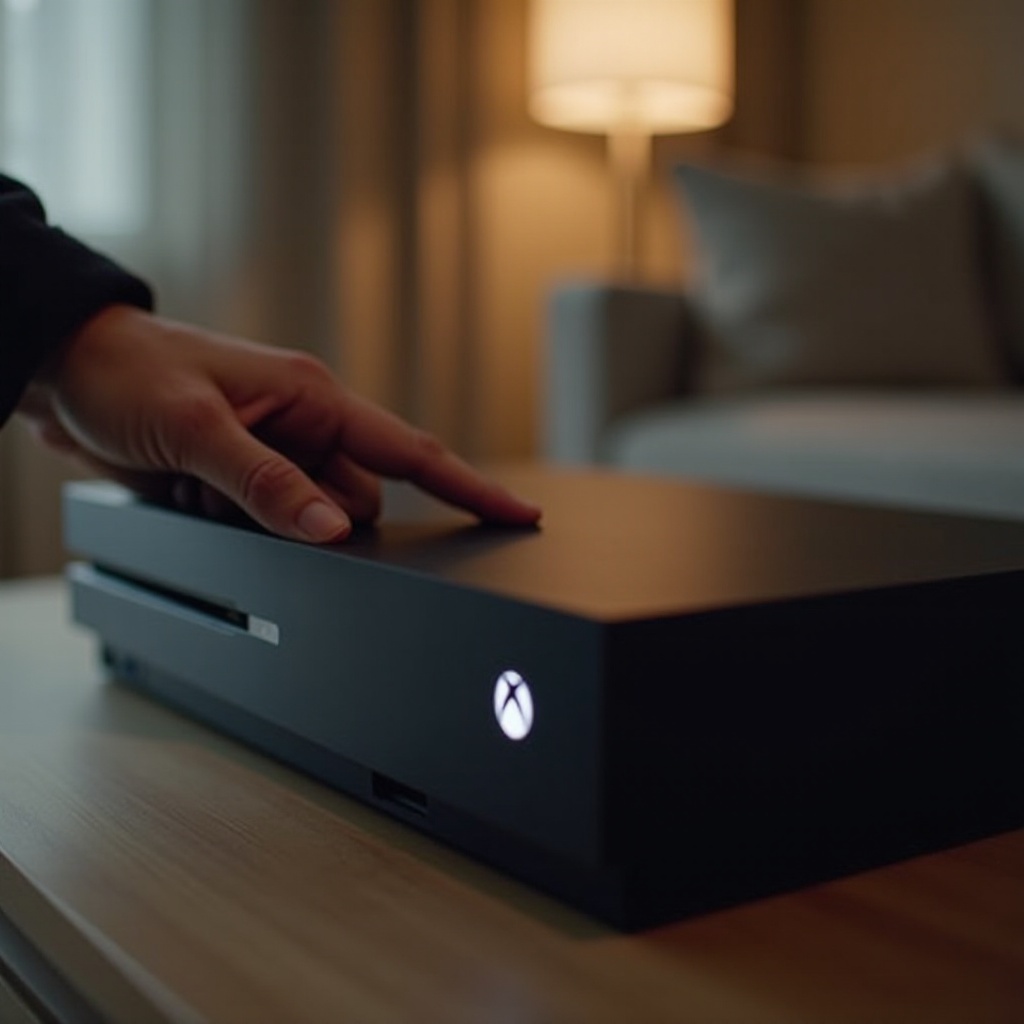
Before you turn on your Xbox One, it’s essential to make sure everything is connected and ready. Skipping this step can lead to unnecessary troubleshooting later on.
-
Check the Power Cable: First, make sure the power cable is properly plugged into both your console and a functioning wall outlet. A secure connection is crucial for a successful startup.
-
Secure the HDMI Connection: The HDMI cable should be properly connected from your Xbox One to your television or monitor. Double-check that it’s firmly plugged in on both ends, and verify that your TV is set to the correct input source.
-
Get Your Controller Ready: Have your controller charged and ready. You can turn on the console using the controller, so ensure it’s already paired with your Xbox One.
These preparations set the stage for a seamless experience when starting your console.
Powering On the Xbox One Console
There are multiple ways to turn on your Xbox One, providing flexibility depending on your preferences.
-
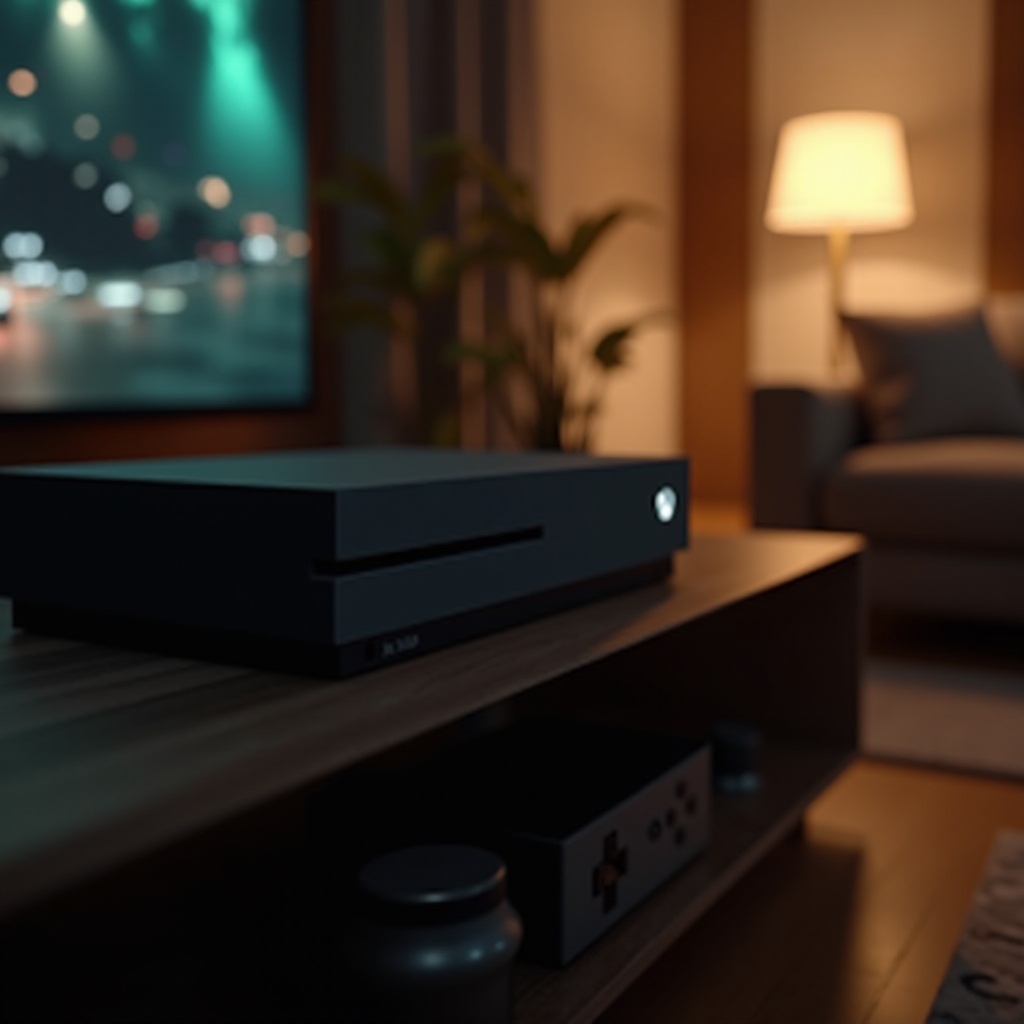
Using the Console’s Power Button: Locate the power button on the front of your Xbox One, typically on the left side. Gently pressing this button should illuminate the Xbox logo and start the console.
-
Using the Xbox One Controller: You can also start the console with your controller. Simply press and hold the Xbox button on the controller. Ensure that it is properly paired with the console. If not, try re-pairing it using the pairing buttons on both the controller and console.
-
Voice Activation with Kinect: If you have Kinect, you can use voice commands to start your console. Saying ‘Xbox on’ can power up the device, provided Kinect is configured correctly.
Once you’ve mastered these options, you’re well-prepared to tackle any startup problems that might arise.
Troubleshooting Power-On Issues
If you’re having trouble turning on your Xbox One, don’t worry. These troubleshooting steps can help you identify and solve the problem efficiently.
-
Check Power Supply: Make sure your power supply unit has proper airflow and isn’t covered. Check the light on the power brick if you have an original Xbox One model. A steady orange or white light means it’s working. If it’s off, try moving to a different outlet or replacing the power adapter.
-
Resolve HDMI Problems: Swap out the HDMI cable or connect the Xbox to a different socket to ensure it’s not a faulty cable. Always confirm the TV settings are correct.
-
Reset the Console: Performing a hard reset can resolve many issues. Hold the console’s power button for 10 seconds until it turns off, unplug the power, wait 30 seconds, and then plug it back and turn it on again.
These steps should help diagnose and fix the issue, allowing you to enjoy uninterrupted gameplay.
Advanced Power-On Options
After addressing basic and troubleshooting steps, it’s beneficial to explore advanced startup features to optimize your console use.
-
Voice Commands and Custom Settings: You can adjust your Xbox One’s settings to customize voice command preferences and power mode. Using the instant-on feature allows for faster startups, though it does require more energy when idle.
-
Xbox App Remote Start: With the Xbox app installed on your smartphone or tablet, you can remotely power on your console (if it supports instant-on mode). This feature adds convenience and flexibility to your gaming setup.
Exploring these features ensures your Xbox One is not just powered on, but tailored to meet your gaming needs efficiently.
Conclusion
Successfully starting your Xbox One is usually straightforward if all basic checks are performed, and knowing how to troubleshoot ensures any hurdles are easily overcome. Equipped with these insights into powering on and exploring enhanced features, you’re ready to fully immerse yourself in the world of gaming.
Frequently Asked Questions
Why won’t my Xbox One turn on?
This could be due to issues with the power supply or HDMI connection. Follow troubleshooting steps like checking cables and resetting the console to identify the problem.
Can I turn on my Xbox One with my phone?
Yes, if your Xbox One is set to instant-on mode, the Xbox app allows you to power it on remotely from a phone or tablet.
What should I do if the Xbox One has a blank screen on startup?
Ensure that the HDMI cable is connected properly and check that the TV is on the correct input. Restart the console if necessary to resolve the issue.