
Introduction
Printer problems, such as not printing black ink, are commonplace and can disrupt crucial work. Fortunately, there’s a way out of this mess. With a few simple steps, you can identify and solve the issue, restoring your printer to full function. In this article, we’ll delve into the reasons for this problem and walk you through the steps and preventive measures to keep your printer in good working order.
Common Causes of Printing Problems
Understanding what causes black ink printing issues is vital for troubleshooting. Let’s explore some frequent causes:
-
Out of Ink or Toner: One of the primary reasons is empty ink or toner cartridges. Double-check your cartridges to ensure they have adequate ink or toner left.
-
Clogged Printhead: A printhead can become clogged over time, especially if the printer isn’t used regularly. This clog can hinder the flow of black ink.
-
Incorrect Printer Settings: At times, the problem isn’t with the hardware but with the settings. Double-check if the printer is set to color instead of black or grayscale.
Having identified these causes, we can proceed with appropriate troubleshooting steps to resolve them efficiently.
Initial Troubleshooting Steps
Addressing these problems begins with straightforward troubleshooting that can resolve most cases:
-
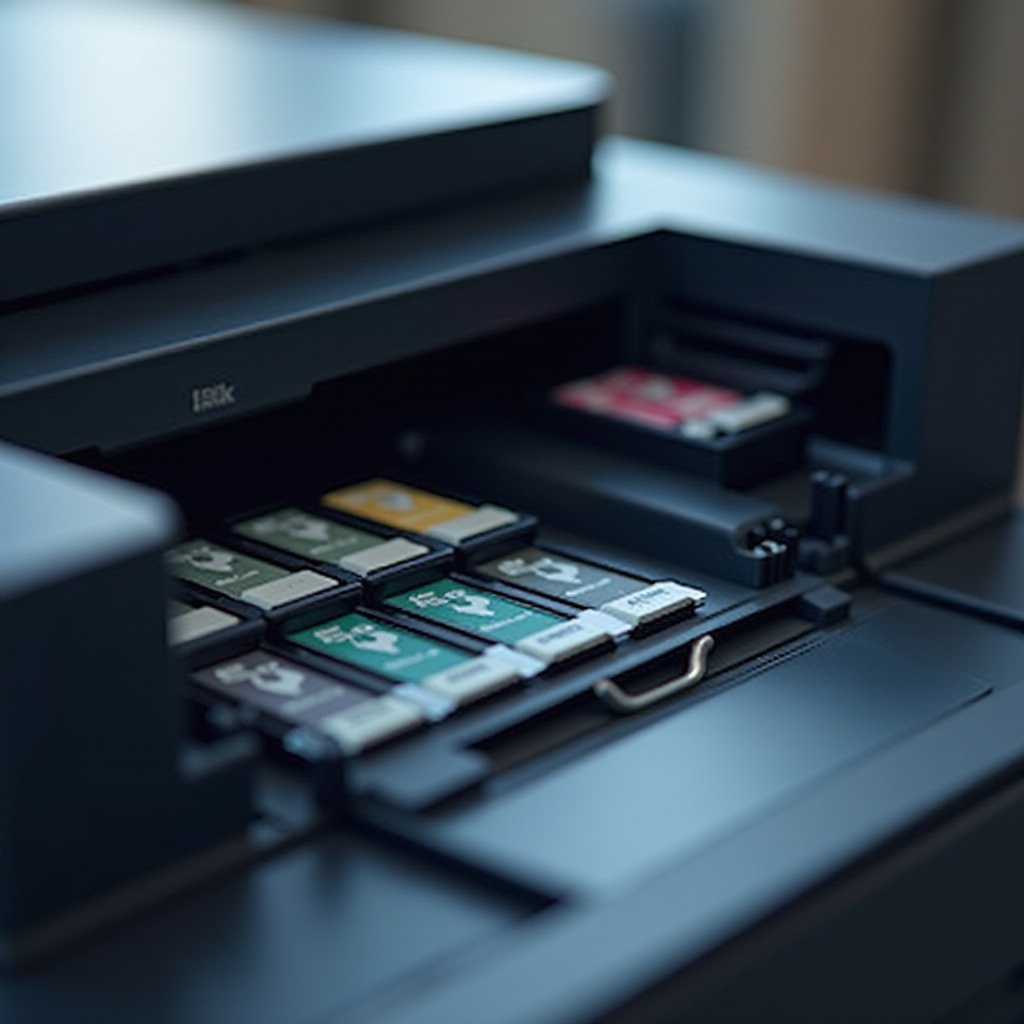
Verifying Ink or Toner Levels: Access your printer’s settings via the control panel on your computer to check ink levels. If the levels are low, consider replacing the cartridges.
-
Running a Nozzle Check: Utilize your printer’s maintenance tools to perform a nozzle check. This will help identify if printheads are obstructed and require cleaning.
-
Ensuring Correct Printer Settings: Check the printer settings on your computer to confirm that it is configured for black or grayscale printing, depending on your needs.
If these initial steps don’t fix the problem, don’t worry. More advanced troubleshooting solutions are available to help restore your printer’s black ink printing capability.
Advanced Troubleshooting Solutions
If basic troubleshooting doesn’t suffice, the following advanced steps can help:
-
Cleaning the Printhead: Use the printer’s built-in maintenance settings to clean the printhead. This can clear any blockages causing black ink not to print.
-
Updating Printer Drivers: Outdated drivers can cause numerous issues, including printing errors. Check the manufacturer’s website for the latest drivers for your printer model.
-
Checking for Software Conflicts: Look out for software conflicts that might be interfering with printing tasks. Make sure no updates are pending for printer software or other connected applications.
With these solutions, you should see a noticeable improvement in your printer’s performance. However, to ensure consistent functionality, adopting preventive maintenance practices is equally important.
Preventive Measures for Printer Maintenance
Incorporating routine maintenance practices can significantly minimize the recurrence of printing issues:
-
Regular Printer Maintenance Routines: Conduct scheduled cleaning and maintenance. This involves dusting the exterior and clearing any dust inside to prevent clogs and ensure optimal operation.
-
Using Genuine Ink or Toner Cartridges: Always opt for genuine cartridges recommended by the manufacturer. This can improve print quality and reduce clogging chances.
-
Environmental Considerations: Keep your printer in a controlled environment. Avoid direct sunlight and humidity fluctuations, which can adversely affect ink and parts.
By implementing these preventive measures, your printer will remain in top condition, reducing the likelihood of future printing issues.
Conclusion
This guide has covered various solutions for addressing black ink printing issues. From checking ink levels to revising settings and practicing regular maintenance, these strategies are designed to tackle both minor and complex printer problems. Remember, consistent preventive care is key to keeping your printer running smoothly and avoiding unexpected disruptions.
Frequently Asked Questions
Why does my printer not print even though it has ink?
There could be a blockage in the printhead, incorrect settings, or a software glitch. Start by inspecting these areas for issues.
How can I conduct a nozzle check?
Access your printer’s maintenance options through the control panel and select ‘Nozzle Check’. Follow the prompts to complete the test.
What are the benefits of using genuine ink cartridges?
Genuine cartridges ensure high print quality, reduce the risk of clogs, and are optimized for your printer model, leading to better performance.