
Introduction
Customizing your Windows 11 experience starts with personalizing your user account. Whether you want a professional touch or a personal one, changing the account name can improve usability and make your device feel truly yours. This guide covers several methods for altering your local account name, including detailed steps and troubleshooting solutions.
Understanding User Accounts in Windows 11
Windows 11 offers both local and Microsoft accounts. A local account is independent of an internet connection, providing privacy and a straightforward user experience. Understanding these differences is essential because your choice impacts how you use and personalize your device. Local accounts offer simplicity and flexibility, especially if you mainly use your PC offline.
Preparation Before Renaming Your Account
Before you change your account name, take some routine precautions. Ensure you back up your data to avoid any loss during the process. Also, confirm that you have administrative privileges, as this is necessary for making changes to account settings. Finally, close all active applications to prevent potential disruptions.
Switching from preparation to action, you are now ready to start the renaming process using one of several methods.
Method 1: Changing Local Account Name via Control Panel
This traditional approach remains effective in Windows 11:
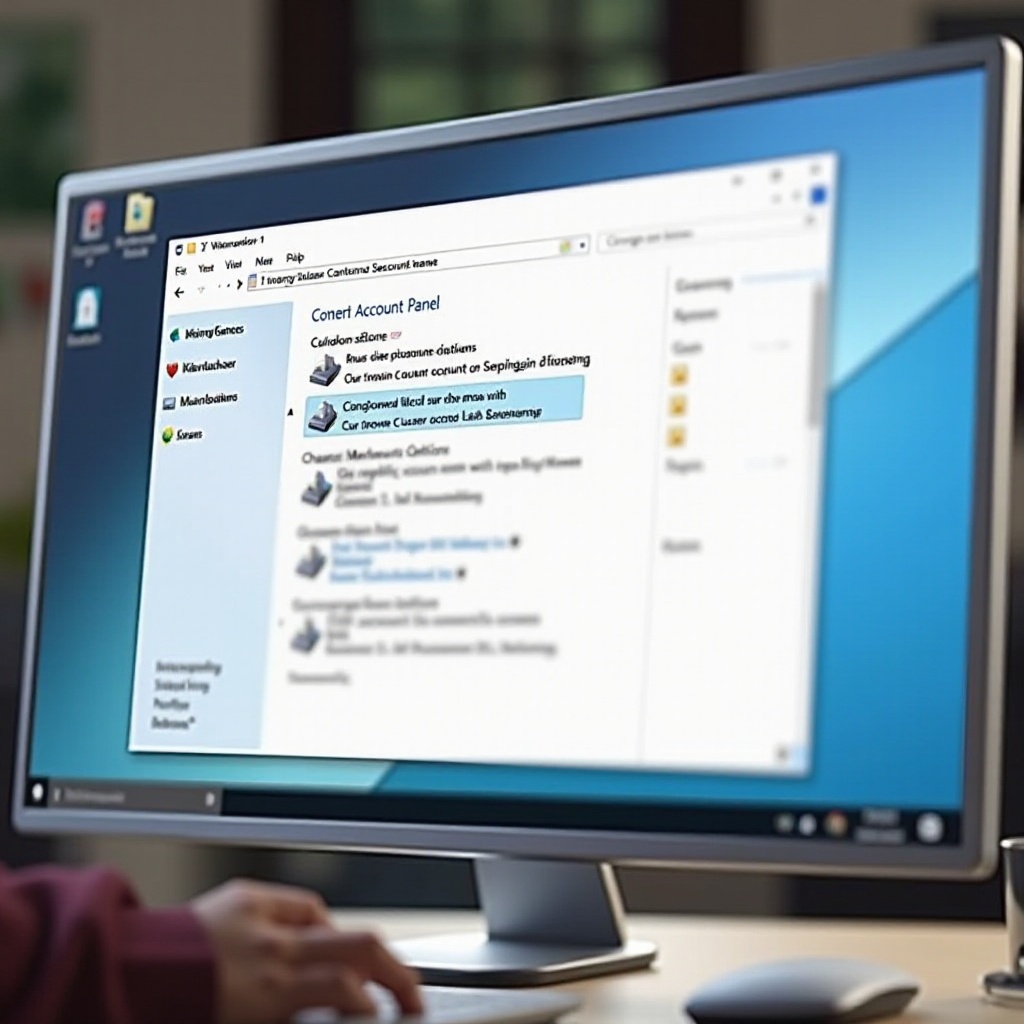
- Access the Control Panel by typing ‘Control Panel’ in the Windows search bar and selecting it from the results.
- Click on ‘User Accounts’ and then ‘User Accounts’ again.
- Select ‘Change your account name’, enter the new name, and confirm by clicking ‘Change Name’.
This method integrates directly with the system’s existing settings, making it a straightforward option.
Method 2: Using Computer Management to Change Account Name
For a more in-depth approach, you can use the Computer Management tool:
- Right-click the ‘Start’ button and select ‘Computer Management’.
- Expand ‘Local Users and Groups’ in the left pane and click on ‘Users’.
- Find your account, right-click, and select ‘Rename’. Enter the new name and press ‘Enter’.
This method offers deeper system administration insights, ideal for experienced users.
Method 3: Updating Account Name via Windows Settings
This method leverages the simplicity of the Windows Settings UI:
- Open the Settings menu from the Start Menu.
- Navigate to ‘Accounts’ and then to ‘Your Info’.
- For accounts linked to Microsoft, manage your information online. For local accounts, enter and confirm the new name directly.
This user-friendly approach emphasizes ease of accessibility for all users.
Troubleshooting Common Issues
While the process is generally smooth, you may encounter setbacks. Here are some solutions:
- If the new name does not appear immediately, log out and back in, or restart your system to refresh.
- If you encounter ‘Access Denied’, verify your administrative rights or restart in Safe Mode to make changes.
- For login difficulties, remember only the display name changes, not the login details themselves.
These quick fixes ensure you maintain a seamless experience across your device.
Tips for a Smooth Transition
To maintain smooth operation after a name change:
- Update shortcuts and links that reference the old account name.
- Verify file paths to ensure they reflect the change.
- Check connected devices or network paths to make sure they align with your updated account details.
These measures help sustain your device’s functionality and connectivity.
Conclusion
Modifying your local account name in Windows 11 enhances the personalization of your device. Whether opting for the traditional Control Panel or leveraging modern settings, each method offers unique benefits. With clear instructions and troubleshooting tips provided here, you can efficiently ensure your device reflects your personal or professional identity.
Frequently Asked Questions
Can I change the account name to anything I want?
Yes, as long as it doesn’t exceed Windows character limits or contain reserved words.
Why don’t I see the updated name immediately?
Try logging out or rebooting your computer. The change may require restarting the system to take full effect.
Will changing the account name affect my files?
No. Renaming your account changes only the display name and does not affect your file paths or system integrations.