
Introduction
If your Roku TV refuses to power on, it can be a real hassle. Whether you’re trying to catch the latest episode of your favorite show or just want to relax, a non-responsive TV is the last thing you need. But don’t worry; this guide will walk you through possible reasons and solutions for when your Roku TV won’t turn on.
Common Reasons Your Roku TV Won’t Turn On
Before jumping into complex solutions, it’s crucial to identify the possible reasons for the problem. Common issues include:
-
Power Supply Issues: Your TV might remain off if its power supply isn’t stable. Loose plugs or faulty power strips often cause this issue.
-
Remote Control Problems: If the remote’s batteries are dead or if it’s malfunctioning, the TV might not receive the power-on signal it requires.
-
Software Glitches: Occasionally, software bugs may render your TV unresponsive unless updated.
-
HDMI Connection Issues: Sometimes, the connected devices are the issue. Ensure HDMI cables are secure and devices are powered.
After pinpointing potential causes, the next steps involve quick and efficient fixes.
Quick Fixes to Try First
Often, the simplest solutions are the most effective. Start with these quick fixes to see if they resolve your non-responsive Roku TV:
- Check Power Connections:
- Confirm that the TV’s power plug is firmly connected to an outlet.
-
If utilizing a power strip, inspect it for potential faults.
-
Replace Remote Batteries:
- Ensure batteries are correctly inserted in the remote.
-
Use fresh batteries to confirm the remote emits signals properly.
-
Soft Reset the TV:
- Remove the power cord from the wall outlet.
- Allow the TV to remain unplugged for at least 10 seconds, then replug and try turning it on.
If these basic steps do not solve the problem, advanced techniques may be necessary to resolve persistent issues.
Advanced Troubleshooting Techniques
In cases where simple fixes don’t work, consider diving deeper with advanced troubleshooting:
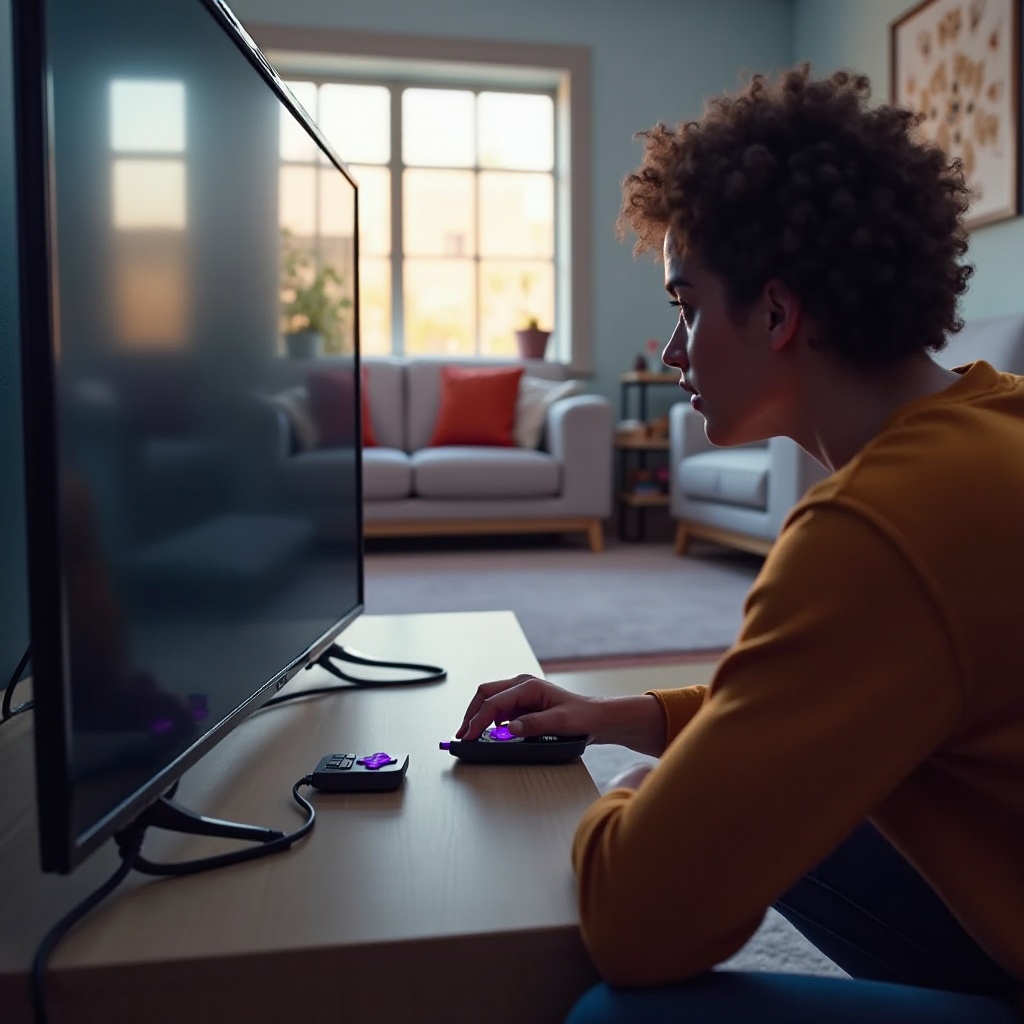
- Perform a Factory Reset:
- Locate the reset button on the TV’s back panel.
- Press and hold it for about 20 seconds.
-
Release and allow the TV to reboot naturally.
-
Update Roku Software:
- Go to settings on your Roku TV.
- Choose ‘System’ followed by ‘System Update’.
-
Click ‘Check Now’ to look for any available updates.
-
Troubleshoot with Different HDMI Cables:
- Unplug existing HDMI cables.
- Connect the TV using alternative, functional HDMI cables.
- Verify the integrity of HDMI ports on both TV and connected devices.
These steps explore further solutions. However, if the issue remains, it’s wise to know when professional assistance might be necessary.
When to Seek Professional Help
If none of the troubleshooting steps are successful, professional help might be required. Here’s when to consider this step:
-
Recognizing Hardware Problems: Persistent power issues, after all software and connection checks, may suggest hardware difficulties.
-
Contacting Authorized Service Centers:
- Reach out to Roku support or an authorized service provider.
- Professional diagnostics and repairs can be beneficial, especially if the TV is under warranty.
Acknowledging when the issue is beyond your reach ensures you’re making the best decision for your device.
Conclusion
Facing a Roku TV that won’t turn on can feel overwhelming, but with the right steps, you can troubleshoot and often resolve the issue on your own. Remember to attempt simple solutions before escalating to more advanced ones. When in doubt, professional support is a reliable option.
Frequently Asked Questions
Why is my Roku TV screen black but the light is on?
This may be due to signal input problems or a software issue. Try a soft reset and check the input settings or update the software.
How do I force restart my Roku TV?
Unplug the TV from the power source, wait for at least 10 seconds, and then plug it back in to perform a force restart.
Does unplugging the Roku TV reset it?
Unplugging the TV performs a soft reset, which can resolve minor software issues without affecting your saved settings.