
Introduction
Samsung TVs offer stunning visuals and cutting-edge technology that elevate home entertainment experiences. Integral to this setup is the HDMI input, a powerful connection that enables high-definition video and audio transmission seamlessly. HDMI connections are essential for connecting various devices, whether it’s a gaming console, streaming device, or Blu-ray player, converting your Samsung TV into a multimedia hub. This comprehensive guide delves into setting up HDMI inputs effectively, exploring advanced features, troubleshooting common issues, and maintaining optimal performance for your home entertainment system.
What is HDMI and Why It’s Important for Samsung TVs
HDMI, or High-Definition Multimedia Interface, stands as the benchmark for transmitting exquisite video and sound quality between devices. Given it supports HD, 4K, and even up to 8K resolutions, HDMI is a must-have for tapping into Samsung TV’s full capabilities. Key benefits include delivering exceptional picture quality, immersive sound, and the convenience of a single cable connection.
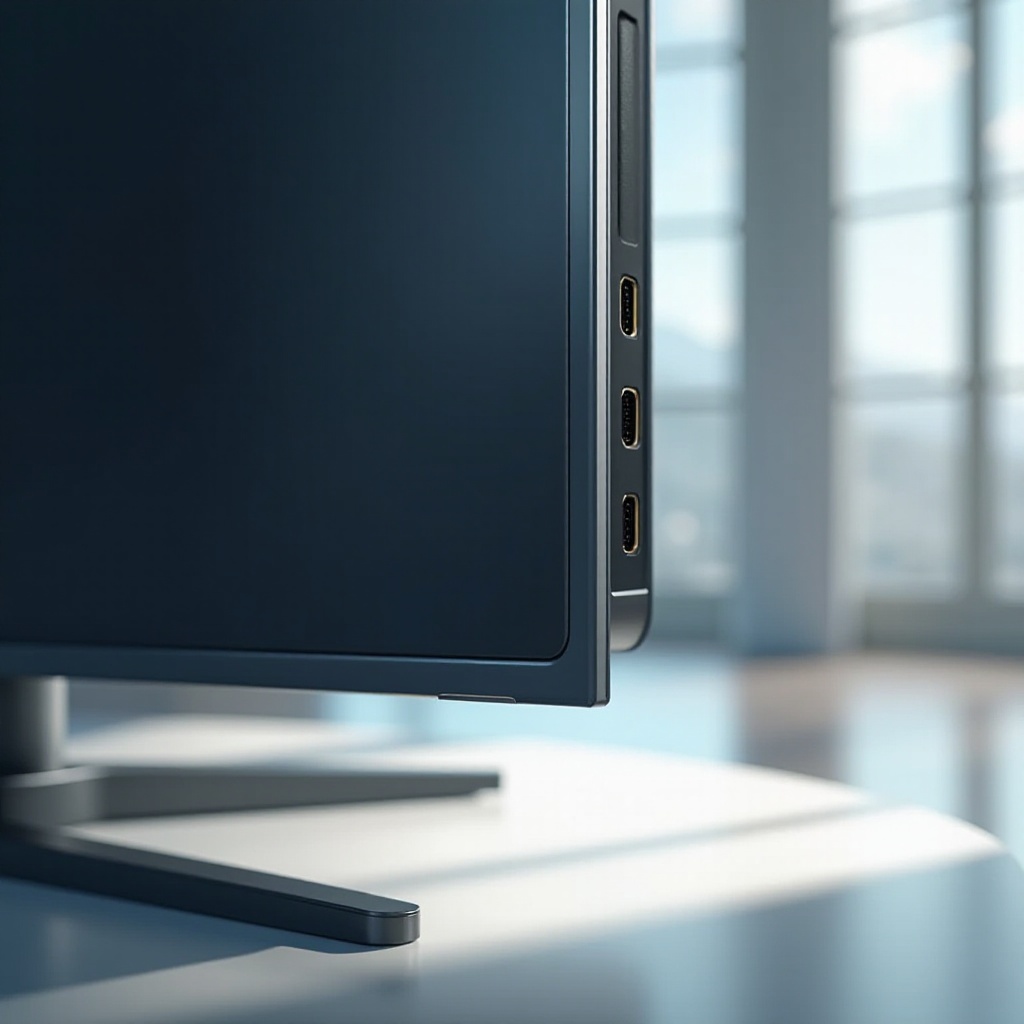
On Samsung TVs, HDMI inputs lay the groundwork for superior performance and minimal cable clutter. Finding these inputs is simple; they are typically located at the back or side of your TV, ready for you to connect high-definition devices effortlessly. Conducting regular checks and ensuring these connections remain firm guarantees you maximize your TV’s potential.
Setting Up HDMI Input on Your Samsung TV
Achieving an optimal home entertainment setup involves correctly setting up HDMI inputs on your Samsung TV. Here’s a clear, systematic method to follow:
-
Identify Available HDMI Ports: Examine your TV to locate HDMI ports, usually labeled and numbered for easy identification.
-
Connect Your Device: Securely connect your chosen device to the TV using a compatible HDMI cable.
-
Switch Input Source: Use your remote control to switch the TV’s input source to the corresponding HDMI port.
-
Configure Settings: Head to the settings menu to tailor your picture size, resolution, and sound settings to perfection.
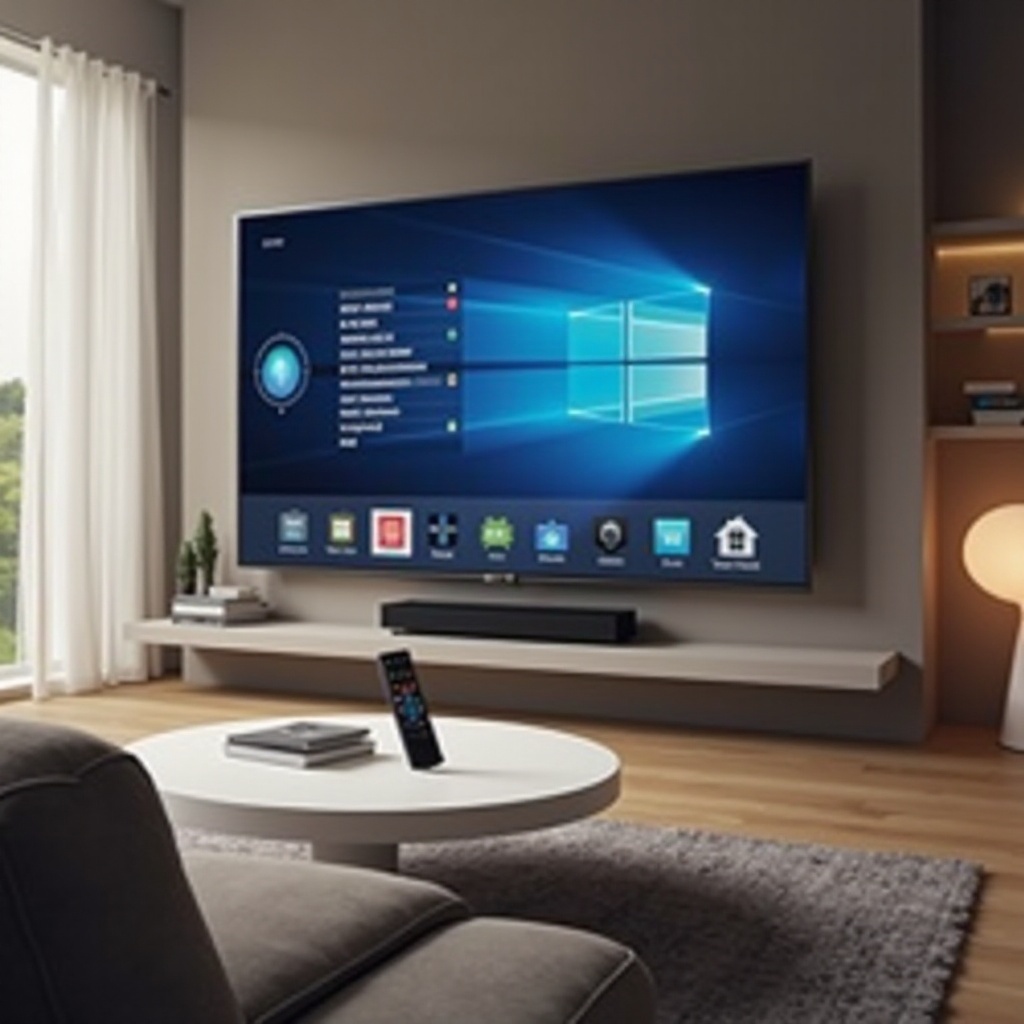
Proper HDMI setup facilitates seamless transitions among devices, whether for gaming, streaming, or watching movies. Such an arrangement ensures you always capitalise on HDMI’s advantages.
Advanced Features of HDMI on Samsung TVs
Beyond basic connection, HDMI technology brings several advanced features that enrich audio-visual experiences.
-
HDMI-CEC (Consumer Electronics Control): This function lets you control multiple HDMI-connected devices with a single remote. By activating HDMI-CEC in your TV’s settings, device management becomes straightforward.
-
HDMI-ARC (Audio Return Channel) & eARC (Enhanced Audio Return Channel): Designed for elaborate audio setups, these features allow the transmission of audio signals via HDMI both ways, eliminating the need for additional cables, especially useful when setting up soundbars or AV receivers.
Utilizing these features can transform your Samsung TV into a nexux for multimedia activity, enhancing not just visuals but audio, too.
Troubleshooting Common HDMI Issues
Occasionally, HDMI connection issues might impede your entertainment experience. Address these disrupting problems with the following solutions:
-
No Signal Error: Confirm that cables are firmly connected at both ends. Ensure your TV’s input is set to the correct HDMI port being used.
-
Audio Issues: Verify that neither the TV nor your connected device is muted. Inspect your HDMI cable’s integrity and try using an alternative port.
-
Display Problems: Ensure resolution settings on both your TV and device match each other’s capabilities. If problems persist, check for firmware updates for your TV to install.
Should you encounter persistent issues, Samsung support offers extensive resources and support to maintain seamless connectivity.
Tips to Maintain and Extend HDMI Equipment Lifespan
Preserving your HDMI setup’s reliability is crucial for sustained, uncompromised performance. Consider these pivotal maintenance practices:
-
Use High-Quality Cables: Opt for cables that support the latest HDMI standards, ensuring long-term compatibility and performance consistency.
-
Regularly Inspect Connections: Routinely check connections to identify any loose connections or frayed cables which might impede signal quality.
-
Avoid Bending Cables: Keep cables straight during use to prevent internal damage and maintain optimal performance.
By adopting these practices, you secure prolonged HDMI functionality, ensuring your Samsung TV consistently delivers top-tier entertainment quality.
Conclusion
Understanding HDMI’s role and maximizing its potential on Samsung TVs greatly enhances your home entertainment. With proper setup, leveraging advanced features, and implementing effective troubleshooting techniques, you can guarantee a seamless multimedia experience. Regular maintenance ensures your HDMI system remains robust and reliable for years to come.
Frequently Asked Questions
How do I reset the HDMI ports on my Samsung TV?
To reset HDMI ports, unplug your TV and connected devices, wait a few minutes, then plug them back in and restart everything.
Why is my Samsung TV not recognizing my HDMI device?
Check connections are secure, switch to the correct input source, ensure the HDMI cable works, and consider updating your TV’s firmware.
Can I use HDMI splitters with Samsung TVs effectively?
Yes, HDMI splitters can connect multiple devices to one HDMI input; ensure the splitter supports your devices’ resolution and HDMI versions.