
Introduction
Samsung Smart TVs are renowned for their excellent picture quality and smart features, making them a popular choice for home entertainment. However, sound issues can be a major frustration. Picture this: you’re about to enjoy a thrilling movie night, the visuals are stunning, but suddenly, there’s no sound. Don’t worry; this guide is here to help. We’ll explore why your Samsung Smart TV might have no audio and provide practical solutions to get your TV sound back on track.
Common Reasons for Audio Issues
Let’s dive into the common culprits behind sound problems in Samsung Smart TVs:
- Volume and Mute Settings: It might sound simple, but double-check that your TV isn’t muted and that the volume is set to an audible level.
- Connection Issues: Loose or faulty connections can lead to audio problems. Check all cables, including HDMI and audio cables, to ensure they’re properly connected.
- Audio Output Misconfigurations: Sometimes, your TV may be set to output sound through external speakers instead of the TV’s built-in speakers. Verify that the audio output settings are correctly configured.
Identifying these common issues can simplify your troubleshooting process and guide you toward effective solutions.
Initial Troubleshooting Steps
If you’re still experiencing audio issues, follow these initial troubleshooting steps to address easily fixable problems:
- Verify All Cable Connections: Inspect all HDMI and audio cables for secure connections. A loose cable can easily disrupt the audio signal.
- Restart the TV and Audio Devices: Turn off your TV and any connected audio devices, then turn them back on. A simple restart can often resolve minor glitches.
- Check External Devices Connections: If you’re using an external device like a gaming console or Blu-ray player, ensure that its connections are secure and that it’s working correctly.
These basic checks can often resolve straightforward audio problems, setting the stage for more in-depth troubleshooting.
Advanced Troubleshooting Techniques
For more persistent audio issues, advanced troubleshooting techniques may be necessary. Here’s what you can do:
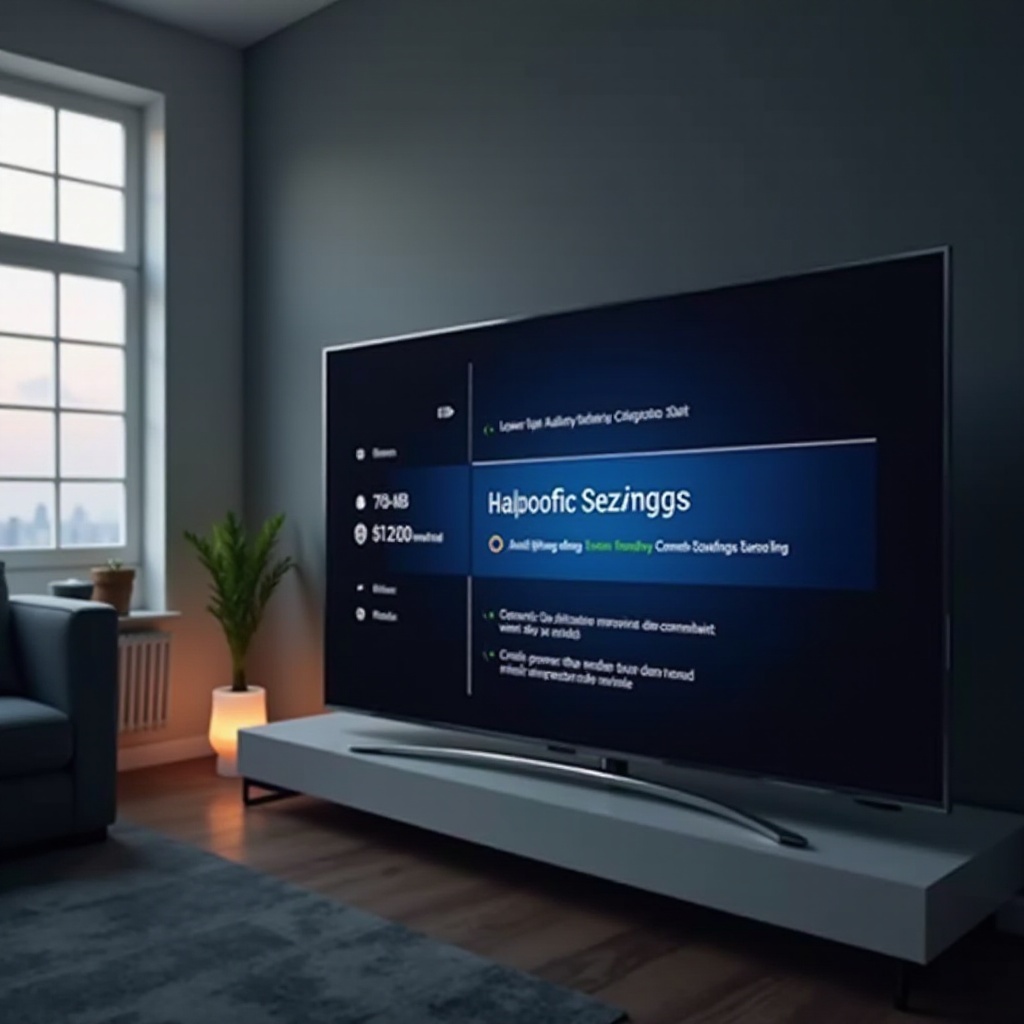
- Software and Firmware Updates: Ensure your Samsung Smart TV’s software is up to date. Updates often address bugs and glitches that could affect audio performance. Navigate to the TV’s settings menu and check for any available updates.
- Resetting Audio Settings to Default: Go to the audio settings menu and revert all settings to their default values. This can resolve any inadvertent misconfigurations.
- Examine HDMI and External Audio Settings: Double-check that the HDMI and audio output settings match your current setup. Misconfigurations in these settings can lead to audio problems.
These advanced methods tackle technical issues that require more specialized attention, ensuring a comprehensive approach to solving the problem.
Enhancing TV Audio with External Equipment
If your TV’s audio still doesn’t meet your expectations, consider enhancing your setup with external devices:
- Soundbars and External Speakers: Adding external speakers or a soundbar can provide richer sound quality and compensate for any deficiencies in your TV’s built-in speakers.
- Bluetooth and Wireless Audio Devices: Connect Bluetooth speakers or headphones for enhanced audio without the clutter of wires.
While external devices aren’t mandatory, they can significantly enhance your viewing experience by providing superior sound quality.
When to Seek Professional Help
If all else fails and audio issues persist, professional assistance may be required:
- Identifying Hardware Issues: A technician can diagnose and repair potential hardware defects in your TV’s sound system.
- Warranty and Repair Options: If your TV is still under warranty, check the terms to see if it covers audio repairs or replacements.
Professional help ensures you don’t inadvertently worsen the problem and provides peace of mind when dealing with complex technical issues.
Preventive Maintenance Tips
Avoid future audio problems by incorporating these preventive maintenance tips into your routine:
- Regular Software Updates: Consistently update your TV’s software to ensure optimal performance and mitigate potential audio issues.
- Cleaning and Inspecting Audio Connections: Clean audio ports and connectors to prevent dust buildup, which can interfere with audio transmission.
With regular maintenance, you can keep your audio system functioning smoothly, reducing the likelihood of unexpected issues.
Conclusion
By following these steps, you can effectively restore your Samsung Smart TV’s audio and enjoy an enhanced viewing experience. From simple checks and updates to advanced troubleshooting and external audio options, these solutions ensure that audio disruptions don’t interrupt your entertainment moments again.
Frequently Asked Questions
Why is my Samsung Smart TV audio not working after a software update?
A software update can sometimes reset your audio settings. Check and adjust the settings back to your preference.
How can I sync audio and video on my Samsung Smart TV?
Check the audio delay settings in the sound options menu. Adjust until the audio matches the video timing.
Is it necessary to use a soundbar with Samsung Smart TVs for better audio?
While not necessary, a soundbar enhances sound quality, providing a more immersive experience than built-in speakers.