
Introduction
The PlayStation 5 brings you into a world of breathtaking graphics and innovative gameplay. Yet, the frustrating ‘No Signal’ message can interrupt the immersive experience. Rather than giving in to frustration, a systematic approach can resolve the issue effectively. Let’s explore the potential causes and solutions to ensure seamless gameplay.
Understanding the ‘No Signal’ Issue
Usually, the ‘No Signal’ issue stems from a disconnect between your PS5 and your television. It manifests through a blank screen or an error message. Several factors might be responsible, including loose cables, hardware faults in HDMI ports, or even software issues. By understanding these potential culprits, you will be better equipped to tackle the problem and avoid it in the future.
Quick Troubleshooting Steps
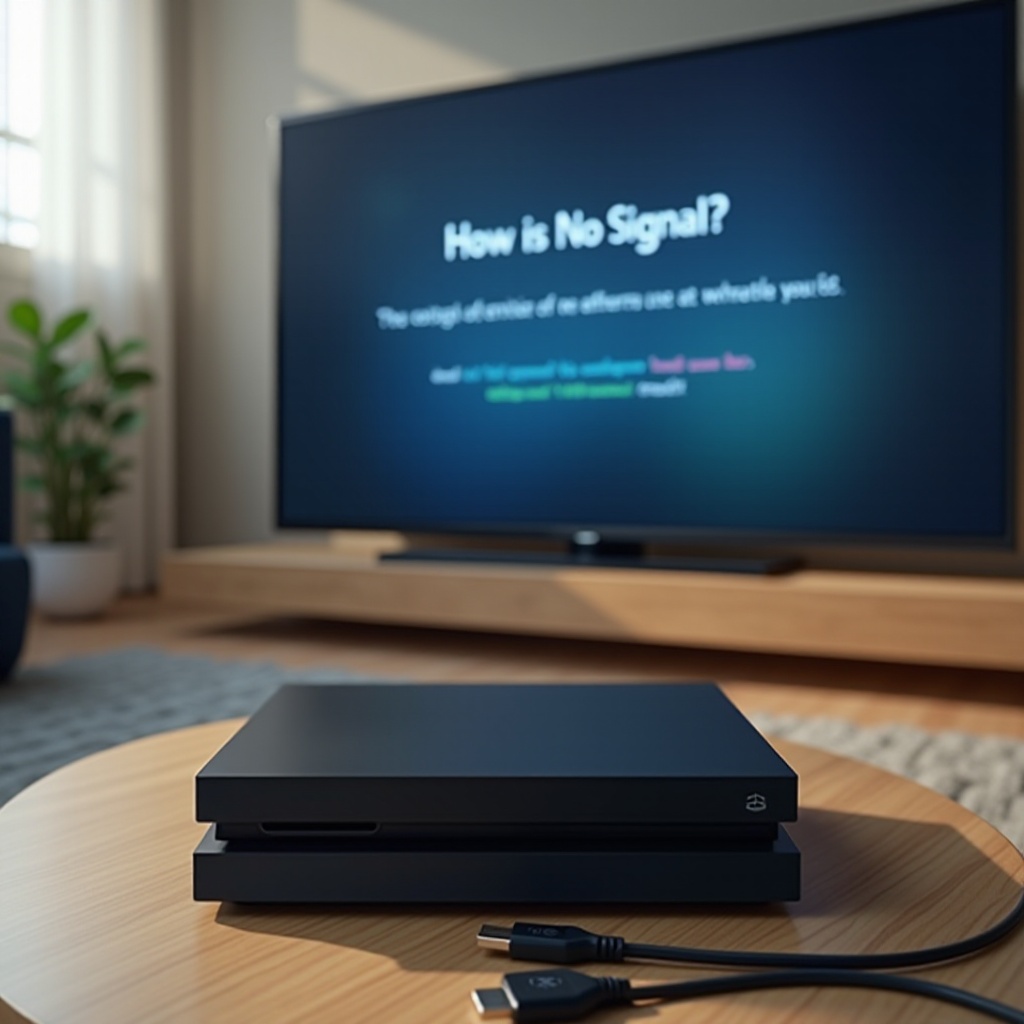
Before diving into more complex solutions, try these simple troubleshooting steps. Often, they are sufficient to resolve the issue without extensive actions:
- Check HDMI Connections: Ensure both ends of the HDMI cable are securely connected to both the PS5 and the TV. A loose connection is a common culprit.
- Verify TV Input Settings: Double-check that your TV is on the correct HDMI input setting matching your PS5.
- Restart Your PS5 and TV: Simply restart both devices. Power them off, unplug, wait a minute, then plug back in and power up again.
These straightforward steps clear minor glitches effectively, reestablishing the connection between devices.
Advanced Troubleshooting Solutions
When basic troubleshooting doesn’t resolve the problem, more advanced methods may be needed to restore connectivity:
- Inspect HDMI Ports and Cables: Examine ports for dirt or physical damage. Test with a different HDMI cable, as faults in the cable can disrupt signals.
- Adjust Display Settings: Start your PS5 in Safe Mode: hold the power button until you hear the second beep. From here, choose ‘Change Video Output’ to modify settings that might resolve the error.
- Test with a Different TV or Monitor: Connect your PS5 to an alternative display unit to rule out TV-specific issues.
Troubleshooting at this level should pinpoint the malfunction, revealing whether the console, cable, or TV is the issue.
Software and Firmware Updates
Outdated software contributes significantly to connectivity issues. Timely updates can ensure smooth operations:
- Updating PS5 Firmware: Navigate to System Settings on your PS5 and run a Firmware update, keeping your console equipped with the latest features and bug fixes.
- Ensuring TV Software Compatibility: Visit your TV manufacturer’s support page or use the TV’s menu system to check and install the latest firmware updates, ensuring compatibility with current gaming consoles.
These updates can bridge compatibility gaps, optimizing the performance of both devices in your setup.
Preventative Measures to Avoid Future Issues
Once resolved, consistent maintenance and preventative strategies will minimize future disruptions:
- Regular Maintenance Tips: Regularly inspect and clean ports and cables to avoid dust accumulation that could affect performance.
- Optimal Setup Practices: Use high-quality HDMI cables, maintain firmware updates, and ensure that all devices in your setup are compatible with each other.
By taking these proactive steps, you’ll significantly reduce the likelihood of experiencing the ‘No Signal’ issue again.
Conclusion
Tackling the PlayStation 5 ‘No Signal’ issue might seem daunting, but a strategic approach simplifies the task. From quick fixes to advanced troubleshooting, and preventive maintenance, solutions are within reach to keep your gaming experience seamless and uninterrupted. Enjoy smooth gaming by keeping your system optimized.
Frequently Asked Questions
Why is my PS5 showing ‘No Signal’ randomly?
Random ‘No Signal’ errors may occur due to intermittent HDMI connections or hardware problems in cables or ports. Regular checks can help identify and resolve these issues.
Can using a different HDMI cable fix the ‘No Signal’ issue?
Yes, a faulty HDMI cable can cause ‘No Signal’ issues. Testing with a new or known working cable can determine if the cable is the problem.
How do I reset PS5 video output settings if my screen is blank?
To reset video output, start PS5 in Safe Mode by holding the power button until you hear a second beep. Select ‘Change Video Output’ to adjust settings.