
Introduction
A PS4 controller that refuses to charge can quickly ruin any gaming experience. When you’re eager to immerse yourself in a thrilling adventure or a competitive match, the last thing you want is to be sidelined with a powerless controller. Understanding the reasons behind the charging failure is crucial to getting back in the game. We’ll explore the common issues and provide you with solutions to fix the problem efficiently.
Understanding Common Reasons for Charging Issues
Identifying the root cause of a charging issue is the first step in solving it. PS4 controller charging problems often arise from various sources, and addressing each potential issue can save time and effort.
Faulty USB Cable and Charging Port
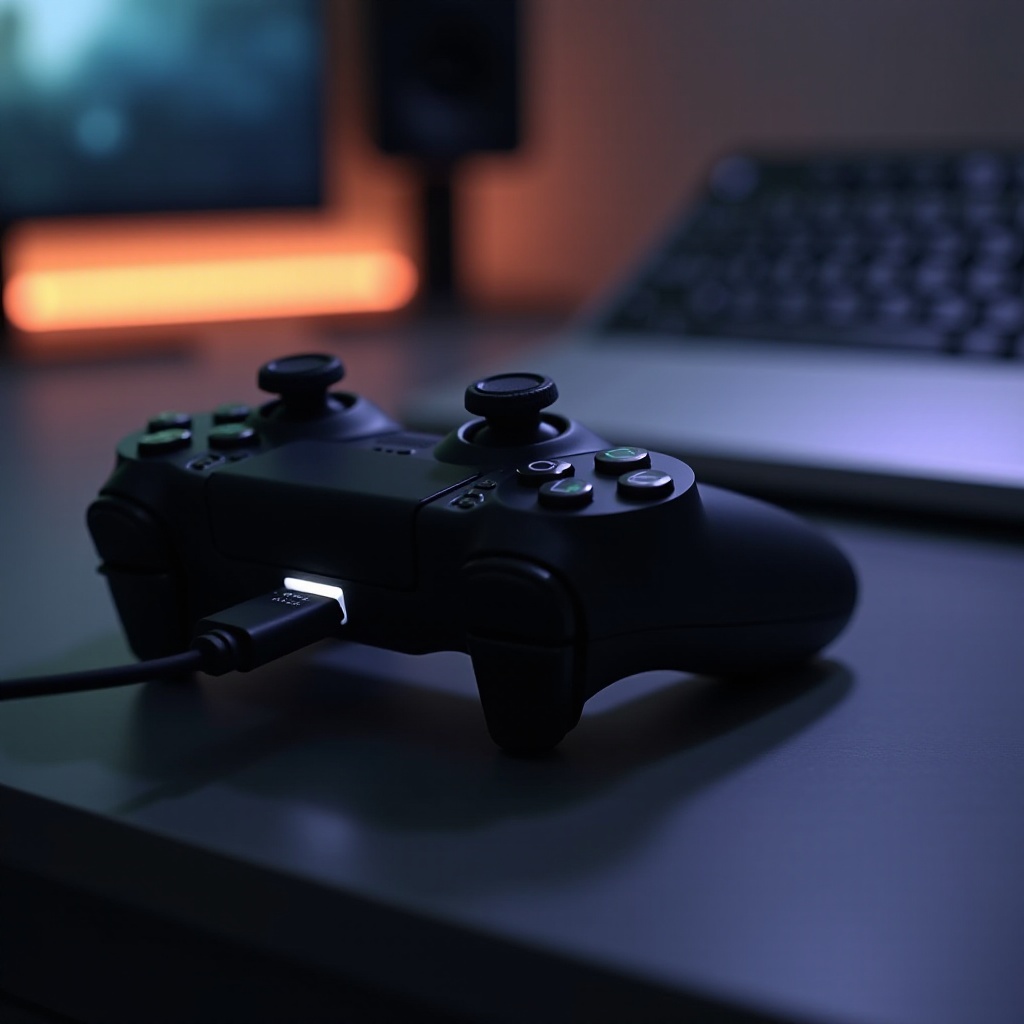
One of the primary culprits for charging problems is a damaged USB cable or a malfunctioning charging port. USB cables endure a lot of wear over time, leading to bends, frays, or broken connections. Similarly, debris in the charging port can prevent a proper connection, hindering the controller from charging.
Software Glitches
Software glitches can also affect charging. An outdated or corrupted firmware might prevent your controller from charging correctly. Ensuring your controller and console are using the latest system updates can help resolve these issues.
Battery Problems
A fading battery can lead to incomplete charges or shorter usage times. Over time, battery capacity wanes, causing the controller to struggle with maintaining power. If your controller’s battery depletes quickly, consider replacing it.
Step-by-Step Troubleshooting Guide
With a basic understanding of common issues, it’s time to tackle them head-on with a series of straightforward troubleshooting steps. Step-by-step evaluations can clarify and rectify most charging troubles.
Checking and Replacing the USB Cable
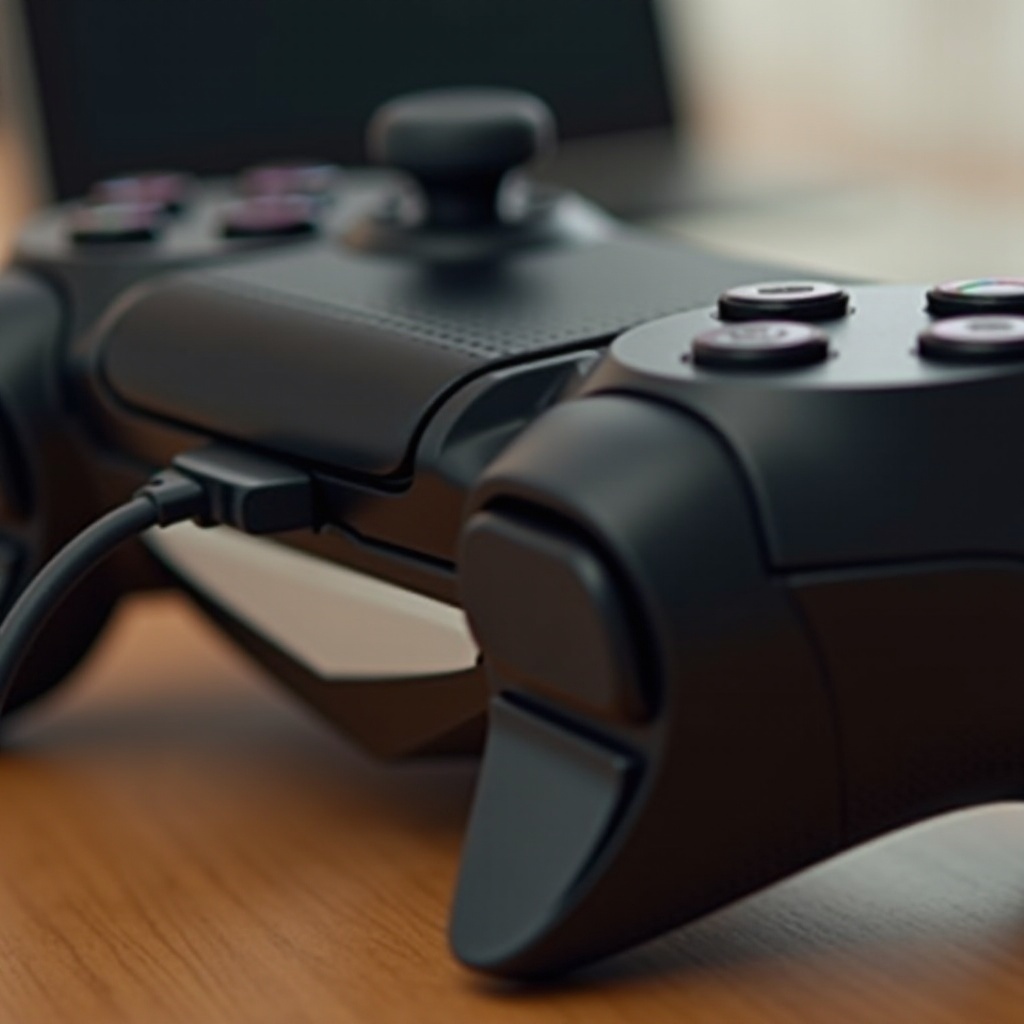
- Inspect the Cable: Look for obvious signs of damage on your USB cable such as frays or exposed wires.
- Test with Another Cable: Use a different USB cable that you know is functional.
- Direct Connection: Ensure that your controller is directly connected to the console, bypassing any adapters or extensions.
Resetting the PS4 Controller
- Use a Paperclip: With a small, unfolded paperclip, press the reset button on the back of the controller near the L2 trigger.
- Hold and Release: Press the button and hold it for a few seconds.
- Reconnect: Try charging the controller again after performing the reset.
Updating the PS4 System Software
- Access Settings: Go to the ‘Settings’ menu on your PS4.
- Update Software: Select ‘System Software Update’ to verify that your console is operating on the latest version.
- Update Controller: If prompted, update the controller’s firmware as well.
Advanced Solutions for Persistent Problems
If simpler solutions don’t solve the problem, more complex interventions may be necessary. These advanced methods require a bit more effort but can effectively resolve stubborn issues.
Using a PlayStation Charging Dock
- Investing in a PlayStation charging dock might provide a more reliable power connection than a standalone cable.
- Switch between different dock ports to identify faulty connections.
Replacing the Controller Battery
- Consider battery replacement if comfortable with electronic gadgets.
- Carefully unscrew the controller’s back, detach the battery, and replace it with a new one, ensuring all connections are secure before reassembling.
Factory Resetting the Console
- As a last resort option, perform a factory reset.
- Navigate to ‘Settings,’ select ‘Initialization,’ and choose ‘Initialize PS4.
- Opt for ‘Full’ to restore the console to its original factory settings.
Professional Repair and Replacement Options
When DIY troubleshooting falls short, professional repair can pinpoint hardware issues that are not easily identified. If your controller remains under warranty, reaching out to Sony for a replacement is a viable option. Weigh the cost of repair against the price of a new controller to make a well-informed decision.
Conclusion
Dealing with a PS4 controller that won’t charge is challenging, but with patience and the correct strategy, most issues can be fixed. Regular checks on cables, firmware updates, and component replacements facilitate smooth gaming sessions. Apply these solutions to enjoy uninterrupted gameplay.
Frequently Asked Questions
How do I know if my PS4 controller battery is dead?
A controller that won’t hold a charge or depletes quickly may indicate the battery is dead and needs replacement.
Can I charge my PS4 controller with a phone charger?
Yes, as long as the phone charger matches the voltage requirements of the controller to avoid damage.
What should I do if my PS4 controller only charges when off?
Ensure all connections are clean and secure, update software, and consider a battery inspection for persistent issues.